
Page Options, Headers and Templates
When you edit a page or post, Pegasus adds two boxes below the content editor: Pegasus Page Options and Additional Header Options. These settings apply to that page only and override the matching site-wide Pegasus Options.
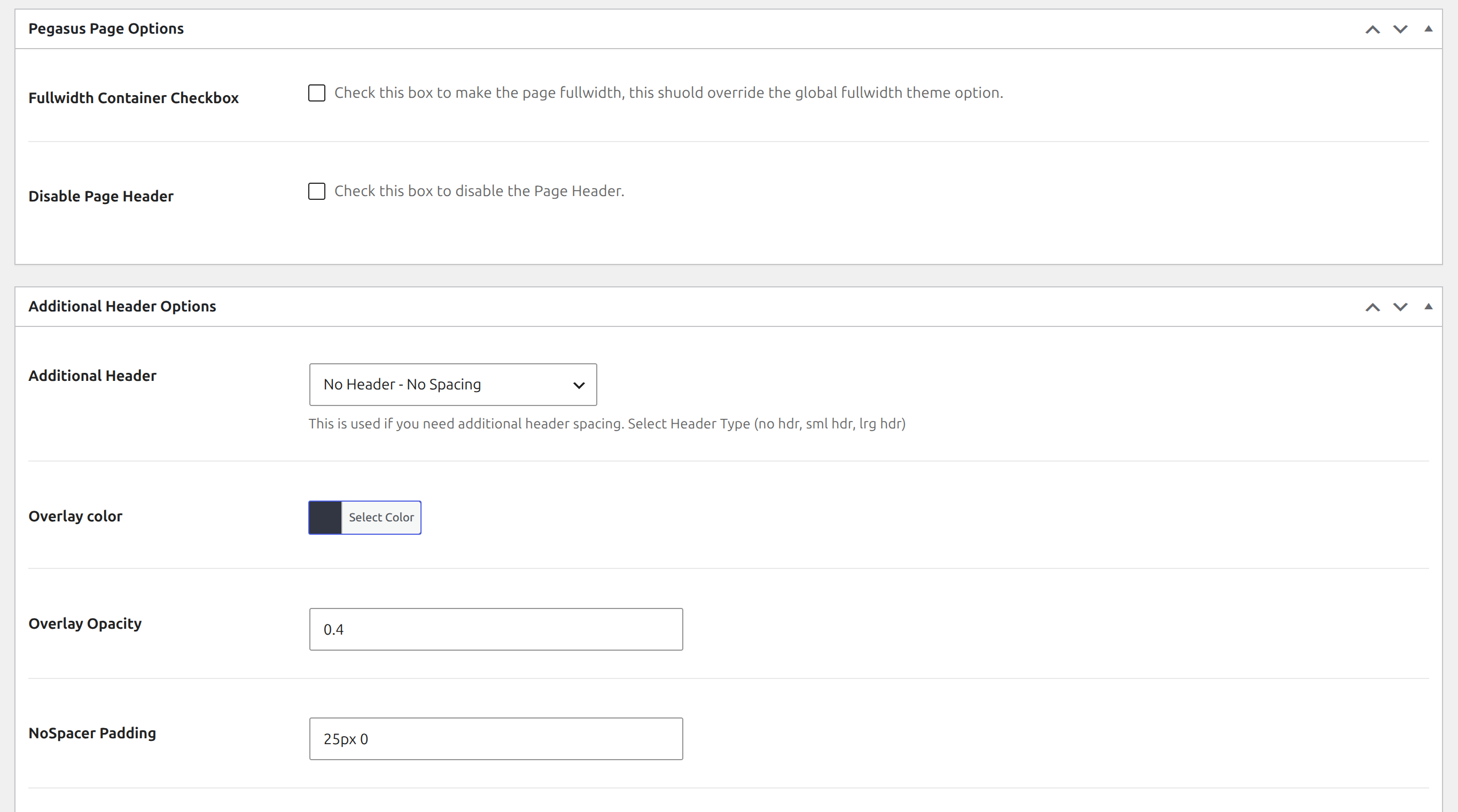
Pegasus Page Options
Section titled “Pegasus Page Options”| Setting | What it does |
|---|---|
| Fullwidth Container Checkbox | Makes this page full-width (if the global full-width option is on, the whole site is already full-width) |
| Disable Page Header | Hides the page header (title) on this page |
Additional Header Options
Section titled “Additional Header Options”Use these when a page needs extra header spacing or a hero area. Choose the type under Additional Header:
| Additional Header | What you get |
|---|---|
| No Header - No Spacing (default) | No page header and no extra top spacing |
| No Header - Just Spacing | No header, but adds top spacing (the NoSpacer Padding) so content clears a fixed navbar |
| Small Header - With Parallax | A small hero header with an overlay color and opacity, and an optional parallax background |
| Large Header - Full Width and Height | A full-screen hero header with an overlay color and opacity |
Then fine-tune it:
| Setting | What it does | Default |
|---|---|---|
| Large Header Slider Shortcode | Put a slider shortcode in the large header. Only appears when Large Header is selected; save the page once after choosing Large Header if you don’t see it | |
| Overlay color | Tints the header background | #303543 |
| Overlay Opacity | Tint strength, from 0 (none) to 1 (solid) | 0.4 |
| NoSpacer Padding | Top/bottom padding used with Just Spacing | 25px 0 |
| Disable Parallax | Turns off the parallax effect | |
| Disable Overlay | Turns off the overlay on the small or large header | |
| Image Repeat / Image Position / Image Size | How the header background image is laid out | Size: Cover |
| Background Attachment Fixed | Fixed background / parallax effect | |
| Header Content wysiwyg | Text or content shown inside the header area | |
| Header Content color | Color of that content | #fff |
Page templates
Section titled “Page templates”In the page editor’s settings sidebar, under Template, Pegasus adds:
| Template | What it does |
|---|---|
| No Sidebar Template | A page with no sidebar |
| List Sub-pages Template | Lists this page’s child pages as links (in page order) |
| Pagination Template | Shows your latest blog posts, 4 per page, with page numbers |
Everything else uses the default template, with the sidebar on the right (or left, if Left Align Sidebar is on in Pegasus Options).